For managers · 2 min read
Import employees and schedules from Excel
How to upload your whole team or shifts from an Excel or CSV file, review each row and send invitations.
Moving from another tool or have a big team? Upload a file instead of adding people one by one.
Steps
- Open Employees and tap Import from file.
- Tap Download template (Excel .xlsx or CSV). Columns: First name (required), Last name, Email, Phone, Location, Department, Role, Access level (employee or manager), Hourly rate, Hire date (YYYY-MM-DD), PIN. You can also use your own file — columns are matched by their headers in English, Russian, Ukrainian or Greek.
- Upload the completed .xlsx or .csv file — up to 500 rows.
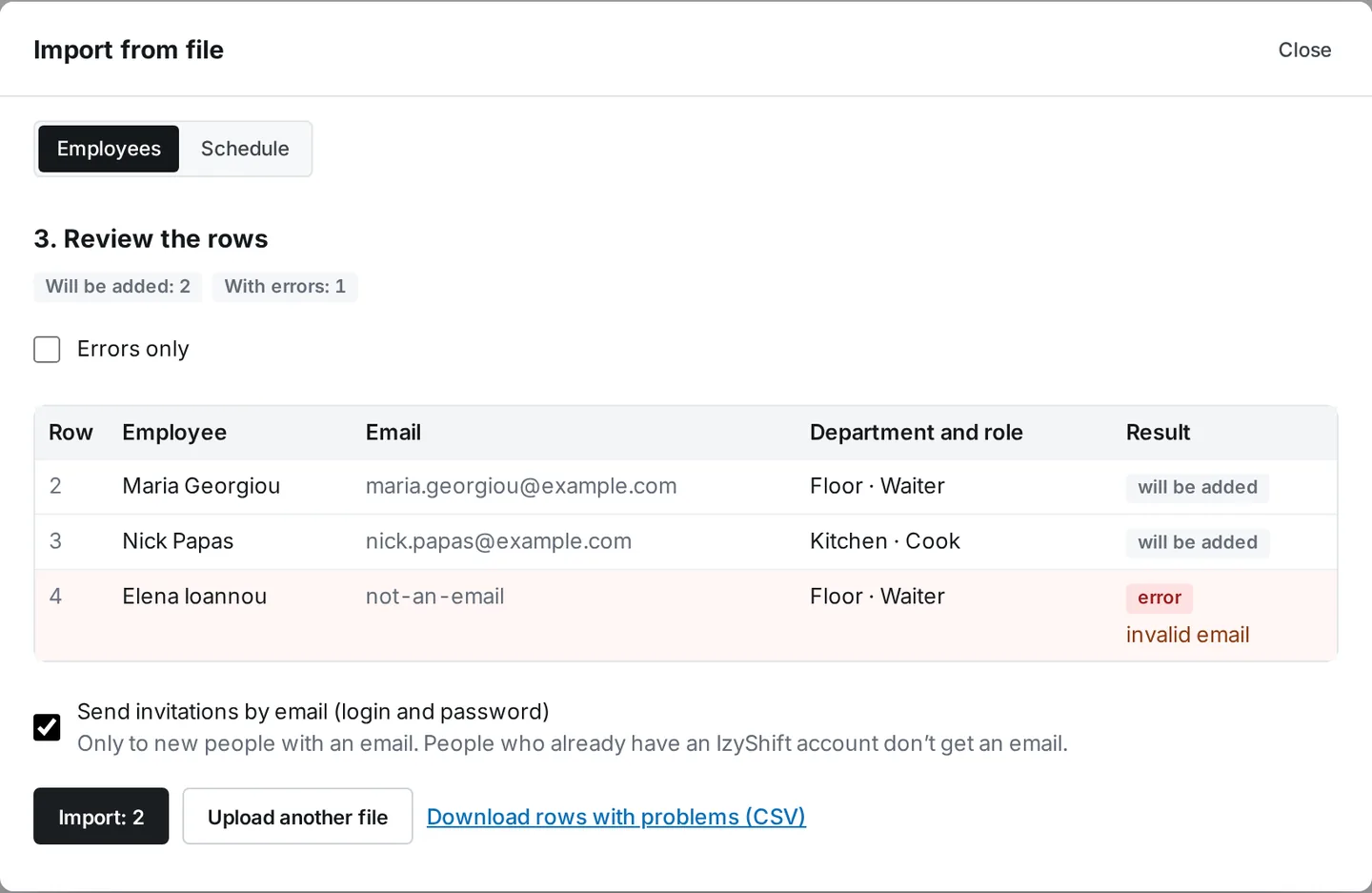
- Review the preview. Each row shows a status: “will be added”, “already exists — will skip” or an error with the reason (no name, invalid or duplicate email, unknown location, department or role, plan limit). Tick Create missing departments and roles to add them automatically.
- Tick Send invitations by email if people should get their login and password right away.
- Tap Import N. At the end you’ll see how many were added, skipped and had errors. You can download a file with the errors by row, fix it and upload it again.
Good to know
To import a schedule, open the Schedule tab on the same screen. Template: Employee, Date, Start, End, Role, Department, Break. Shifts are added as drafts — employees only see them after you publish.
Where to find it
Employees (on a phone, People) → Import from file. Available to managers and above.
FAQ
What happens to people who are already in IzyShift?
Those rows are marked “already exists — will skip”. No duplicates are created.
Can I upload the file again?
Yes. People already added are skipped; only new and corrected rows are added.