For managers · 2 min read
Publish the schedule
How to publish a week, notify only the people whose shifts changed, or publish without notifications.
While a shift is a draft, only you can see it. Employees see the schedule and get a message once you publish.
Steps
- Open Schedule on the week you need. The Publish (N) button shows how many changes aren’t published yet.
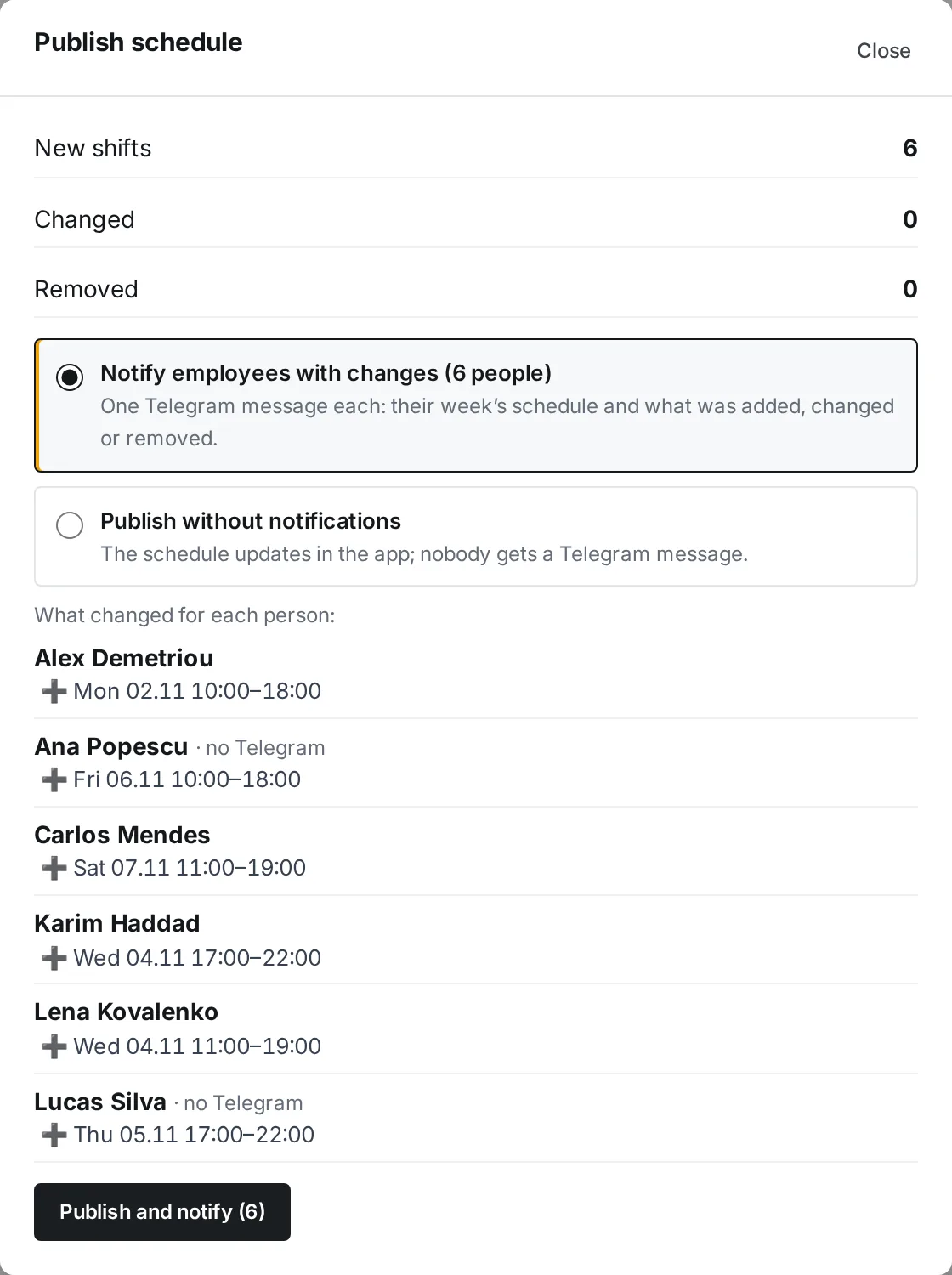
- Click it. The Publish schedule window opens with New shifts, Changed, Removed and a “What changed for each person:” list.
- Choose an option: - Notify employees with changes — only people whose schedule changed get a message; - Publish without notifications — the schedule updates in the app, no messages are sent.
- Click Publish and notify (N) or Publish without notifications. Done — the schedule shows ✓ Published.
Where to find it
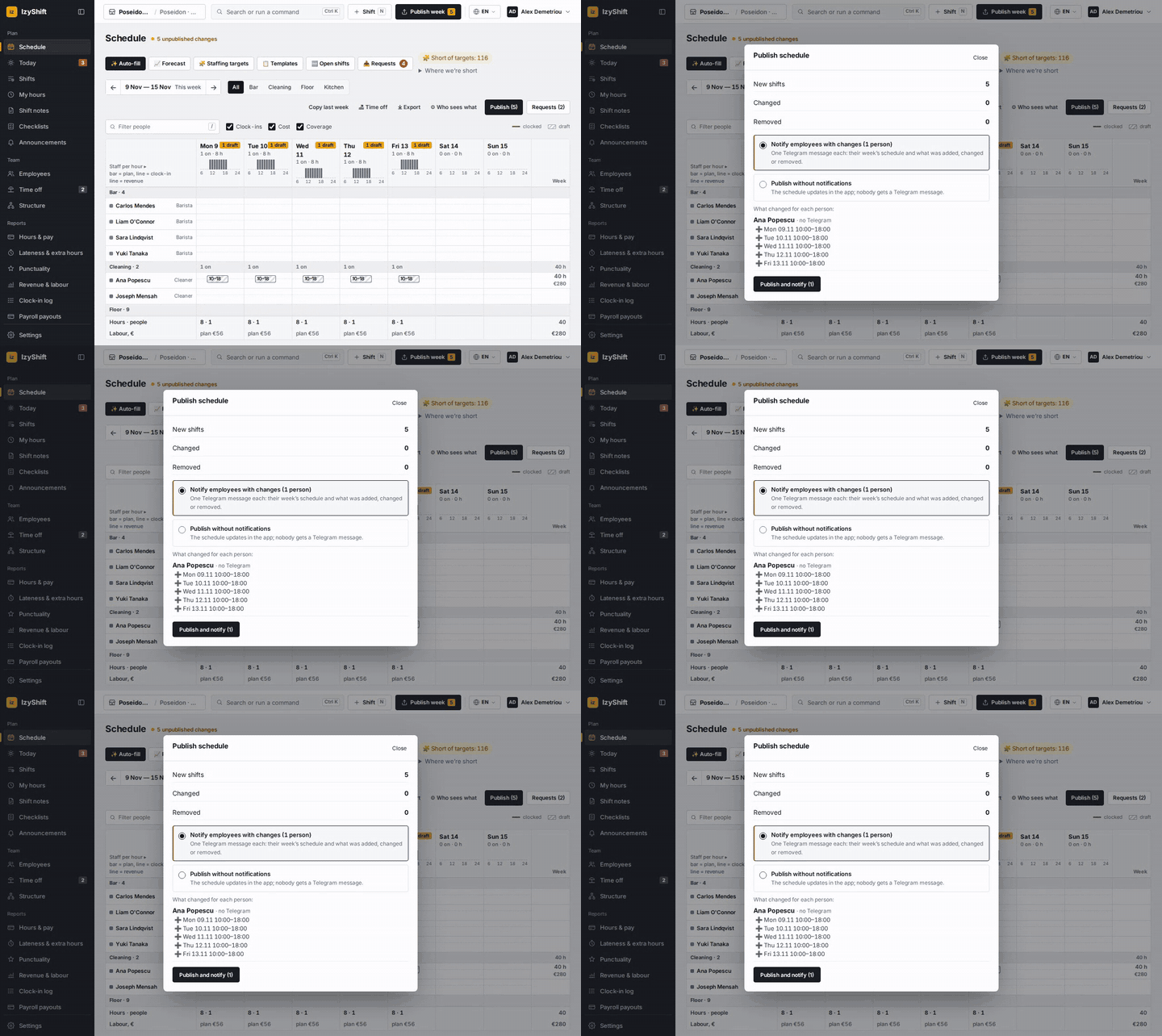
- Computer: the Publish week button at the top of the screen (key P).
- Phone: the bar above the schedule shows “N drafts” with a Publish button.
- Managers, administrators and the owner can publish. A department manager publishes only their own departments.
Good to know
Each employee gets one message in their language: their whole week, with new ➕, changed ✏️ and removed ➖ shifts, time off and shift notes. The message goes to Telegram, or, if notifications are turned on for your company, to the channel the person chose (Telegram, push or email). The window shows who won’t get it. Your last choice is remembered.
FAQ
I edited a published shift. Will the employee know?
If you changed the time or the person, the shift is waiting to be published again — publish the week once more. Changing only the role, note or break doesn’t need publishing.
I only deleted shifts — what is there to publish?
You can publish a week where shifts were only removed: the employee will see that the shift was taken off.