For managers · 2 min read
Add employees manually or with an invite link
How to add an employee to IzyShift, email them a login and password, or invite your whole team with one link.
There are two ways to add someone: fill in their profile yourself, or send an invite link so the employee adds themselves.
Steps
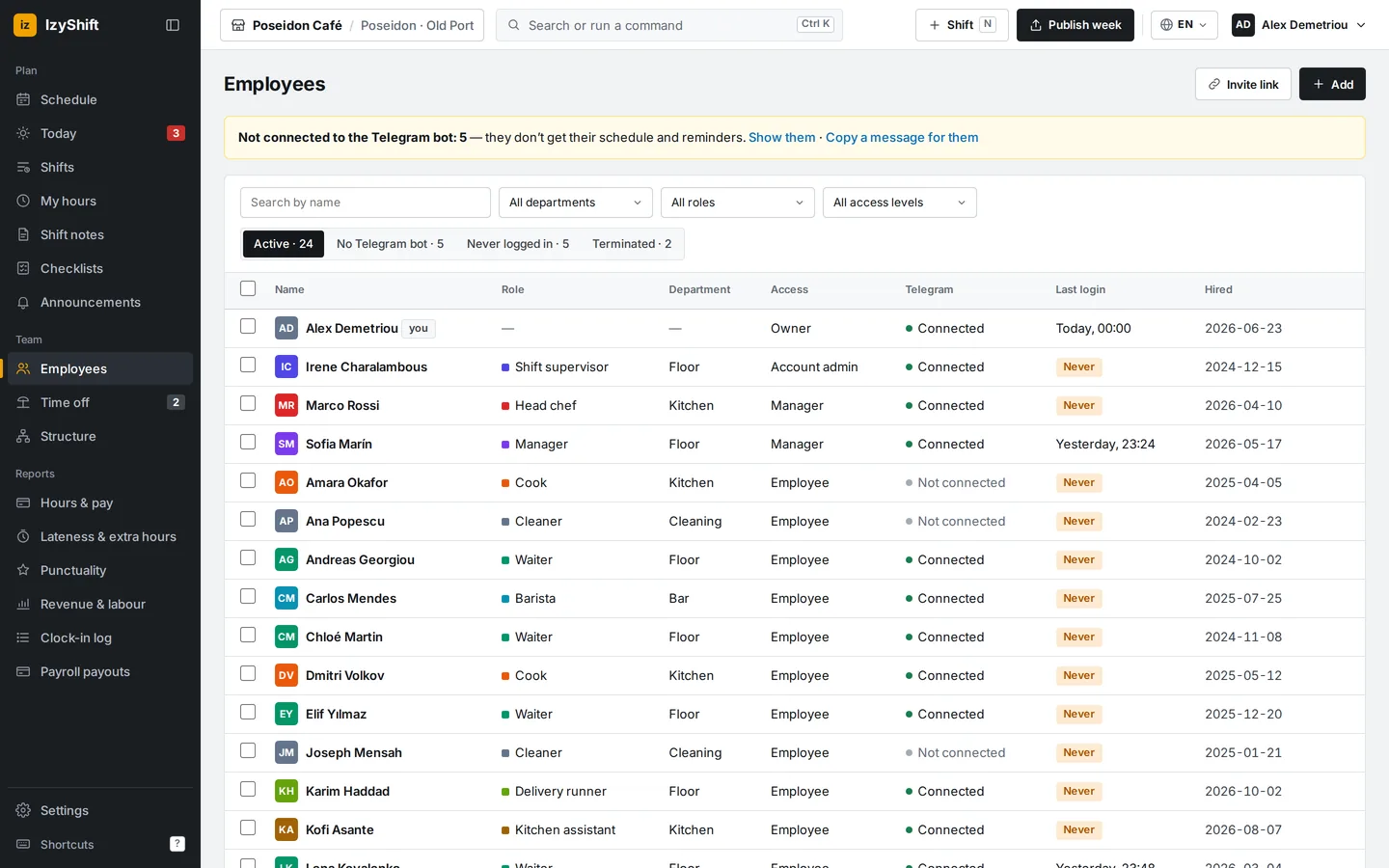
Manually 1. Open Employees (on a phone, the People tab). 2. Tap + Add. The New employee form appears. 3. Enter the first name (required), last name and work email — the person will log in with it. Choose the department and role. 4. Tap Add. 5. Open the new employee’s profile, go to Personal and tap Email login and password. They will receive an email with their login and an eight-digit password.
With a link 1. In Employees, tap Invite link. 2. Optionally choose a department and role, then tap Create link. 3. Tap copy or share and send the link to your team chat. 4. The person opens the link, enters their name and work email — and they are on the team. Their login and password arrive by email.
Where to find it
Employees is in the menu on the left on a computer; on a phone it is the People tab at the bottom of the screen. Managers and above can add people. An invite link is valid for 14 days; remove a link you no longer need with revoke.
FAQ
I see “Plan limit reached — upgrade your plan”. What now?
The free plan covers up to five people at one location. To add more, the owner needs to choose a plan or start the free trial — see the subscription.
An employee lost their password?
Open their profile → Personal → Reset password and email it. The employee can also tap Forgot login or password? on the login page.