For managers · 2 min read
Build the weekly schedule
How to add shifts, repeat a shift on other days, copy last week and mark time off straight from the schedule.
For managers and owners: how to fill a week with shifts quickly. Everything you add starts as a draft — employees see nothing until you publish the schedule.
Steps
- Open Schedule and pick the week with the ← → arrows.
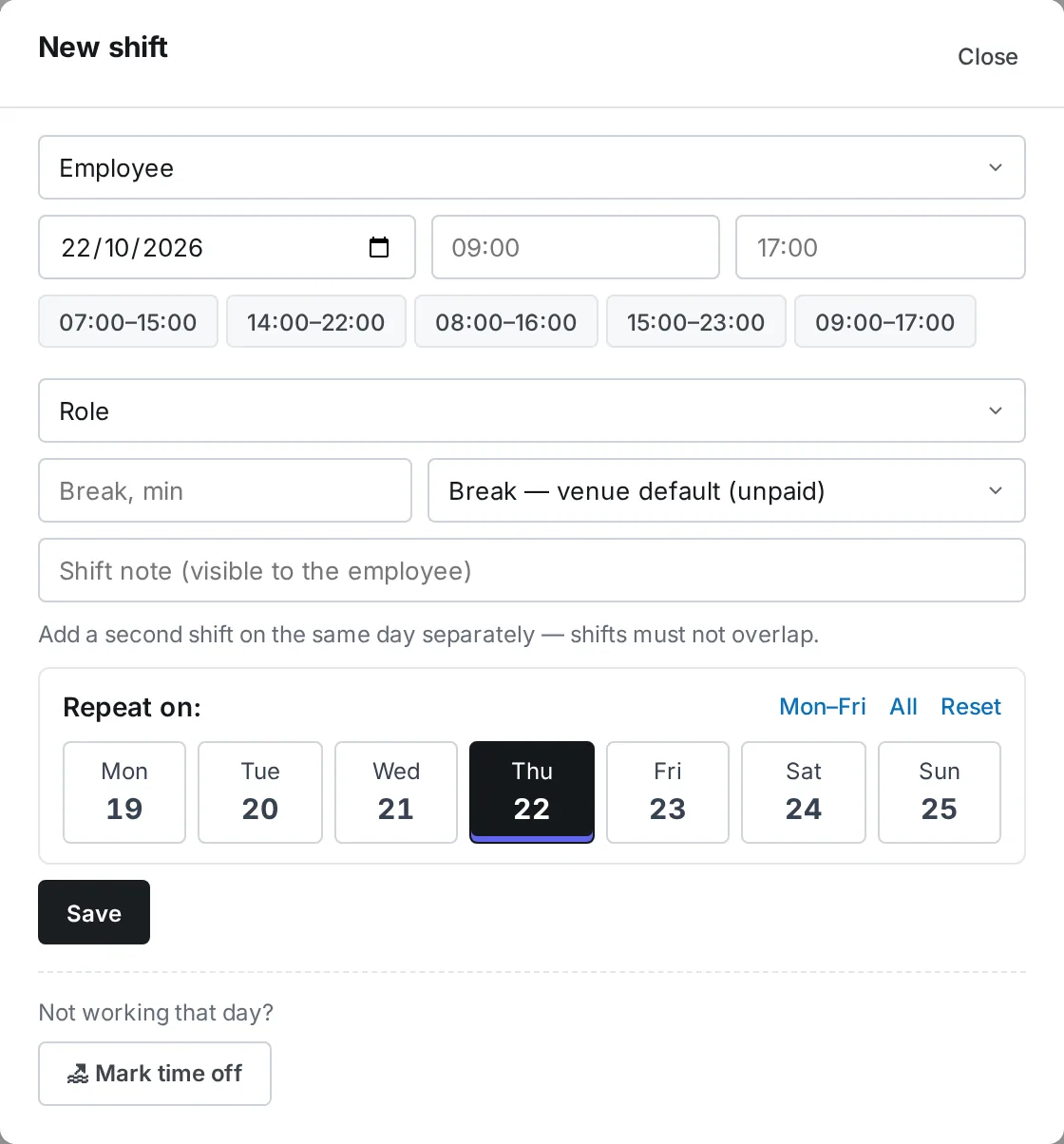
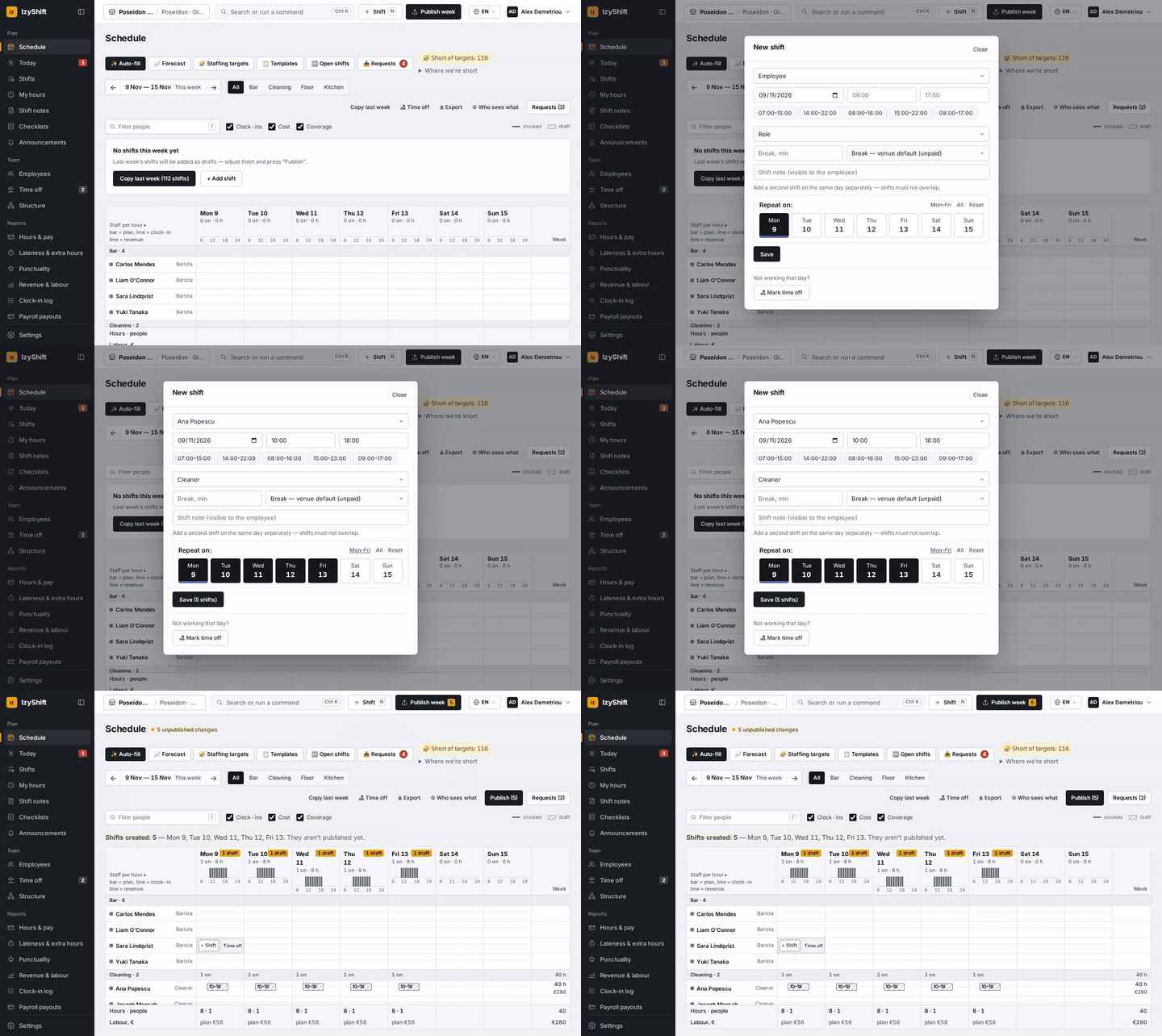
- Hover over an empty cell for an employee and click + Shift. Set the start and end time, role, break and a note (the employee will see it). Click Save.
- To add the same shift on other days, tick the days under Repeat on: (quick buttons Mon–Fri and All). The button changes to Save (N shifts).
- Is the week like last week? Click Copy last week (on a computer it is above the schedule, on a phone it is in the schedule menu) and confirm with Copy. People who have left and shifts that already exist are skipped.
- Someone isn’t working that day? Click Time off in the empty cell — see Time off and days off.
Where to find it
- Computer: the Schedule section. Hover over a shift and press Ctrl+C (⌘C on a Mac), then hover over another cell and press Ctrl+V — the copy is added as a draft. Right-click opens a menu: Copy, Paste, Duplicate to next day, Delete. Press N for a new shift.
- Phone: the Schedule tab; swipe to change the week. Copying the week and time off are in the schedule menu.
- Managers, administrators and the owner can add shifts. A department manager can only do it in their own departments.
FAQ
Can the employee already see the shift I just added?
No. New, copied and pasted shifts are drafts. Employees find out about them once you publish.
Can I add two shifts on the same day?
Yes, add the second shift separately. The shifts just must not overlap.