For managers · 4 min read
Time off, days off and requests
How to add leave, a day off or sick leave, decide on an employee’s request and see how much leave has been used and is left.
For managers and owners: how to mark absences in the schedule and answer employee requests. Time off that you add goes straight into the schedule — no approval needed.
Steps
- In Schedule, hover over an empty cell and click Time off (or the 🏖 Time off button above the schedule).
- Choose the employee and the type: Day off, Paid leave, Sick leave or Unpaid leave.
- Set the First day and Last day. For paid absence you can enter Hours per day: blank means the venue’s standard, 0 means unpaid.
- If there are shifts on those days, you will see a warning. Click Save and remove N shifts — the shifts are taken off the schedule.
- Open employee requests with the Requests (N) button above the schedule (on a phone: Time-off requests in the schedule menu) and click Approve or Reject. If there are shifts on those dates, you will be asked whether to remove them.
Where to find it
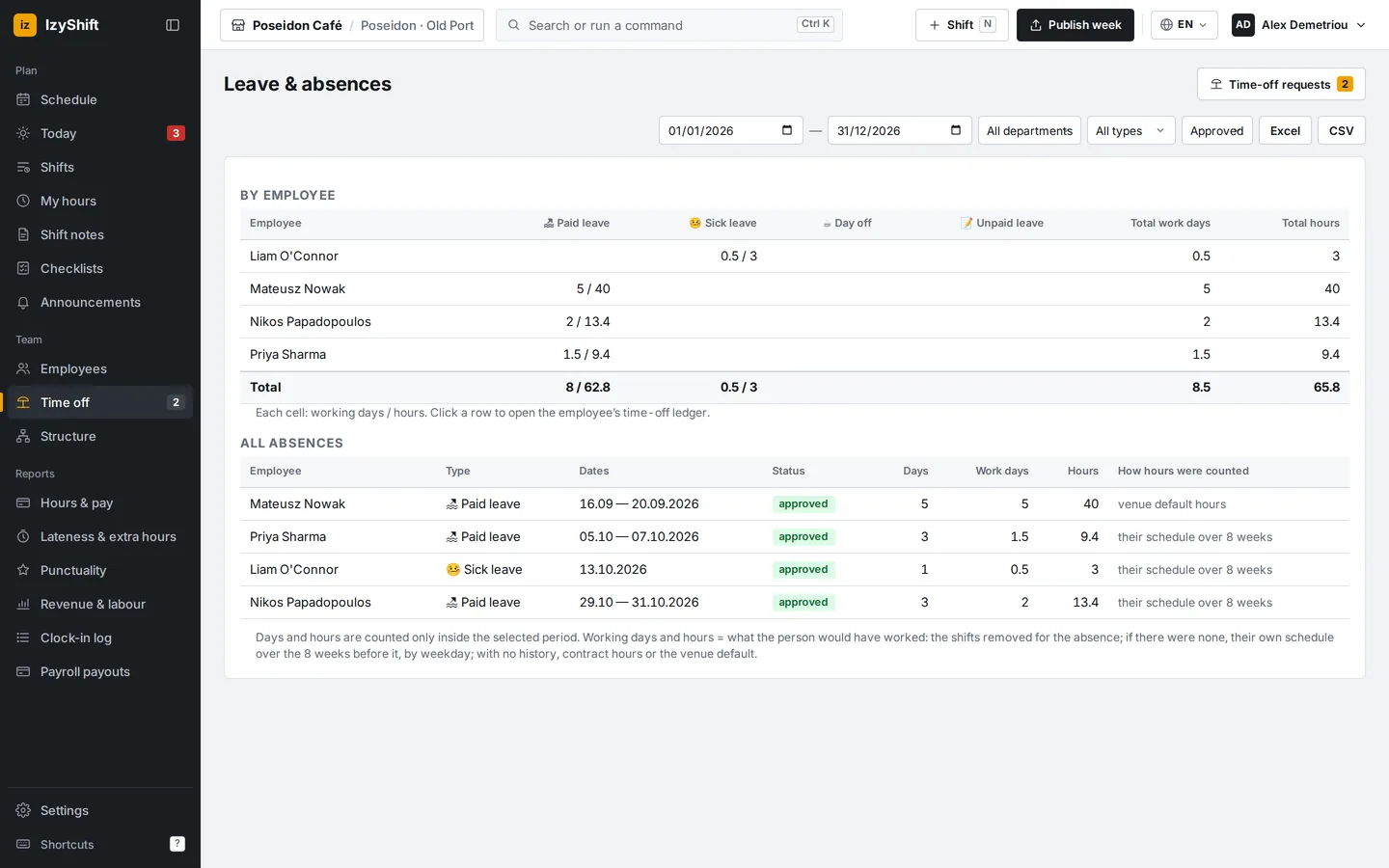
- Computer: the 🏖 Time off button above the schedule, or key T. Per person: employee profile → Time off — days, working days and hours for the year, Taken, Upcoming, Remaining. For everyone: Time off in the left menu (the Time off & absences report, with Excel export).
- Phone: the schedule menu → Time off and Time-off requests.
- Managers (department managers for their own departments), administrators and the owner can add and decide. The owner sets the annual leave allowance.
FAQ
Will the employee know their shifts were removed?
Yes, if the week was published: removed shifts are included in the next publication marked ➖.
How are leave working days counted?
From the person’s schedule: the shifts removed because of the leave, or, if there are none, how they usually worked over the last 8 weeks.
How do I set my own day mark — “On site”, “Training”, “Catering”?
First the owner or an admin creates the list: Settings → Day marks → + Mark (name, colour, type). Working — the day counts as worked: no clock-in needed, it isn’t a no-show, hours and pay follow the schedule (with no shift — the mark’s hours). Non-working — like a day off, no hours. Then in the schedule tap the employee’s day → Time off: next to “Day off” and “Leave” you’ll see your marks and Other… — a short one-off text (non-working by default, you can tick “working day”). The mark shows in the schedule, the PDF/Excel export, the employee’s app and bot, “Shifts → By day” and the timesheet.
How do I enter leave used before switching to IzyShift?
Leave balances in the left menu (on a phone — More → Leave balances). On the Enter past days tab set “Used up to (inclusive)” (usually the day before you started in IzyShift), enter each person’s leave days (working days, halves allowed) and sick days up to that date, and if needed the Days per year, then click Save changes. Leave already entered in IzyShift up to that date is included and isn’t counted twice. For many people use ⤒ Import from Excel: download the template (it lists all employees), fill in the yellow columns, upload it, click Check, then Apply.
How is the leave balance calculated and where is it shown?
Balance = entitled + carried over + adjustments − before IzyShift − used − planned (working days per year). Carry-over from last year and adjustments with a reason are added in the employee’s sheet (click the row). Every entry is in the Log — who added it and why; a mistake is cancelled by a new entry, the old one is never deleted. Employees see their balance in Shifts (“📒 My leave · N left”) and in the bot under 🏖 Time off — these are days, not money, so the “Employees see their pay amounts” setting doesn’t affect them. Sick leave is counted in calendar days; your own “Sick” day mark can count as sick leave: Settings → Day marks → Count in leave balances.