For managers · 2 min read
Staffing targets, templates and auto-fill
How to set how many people each shift needs, save a week as a template and fill the gaps automatically — with a reason for every choice.
If this feature is turned on for your company, IzyShift helps you build the week: you set staffing targets and auto-fill suggests who goes where. You always make the final call.
Steps
- In Schedule, click 🧩 Staffing targets → + Target: job role, department, days, time and how many people you need. Click Add target.
- Save a good week: 📋 Templates → Save this week as a template. Later, on another week, use Apply to this week.
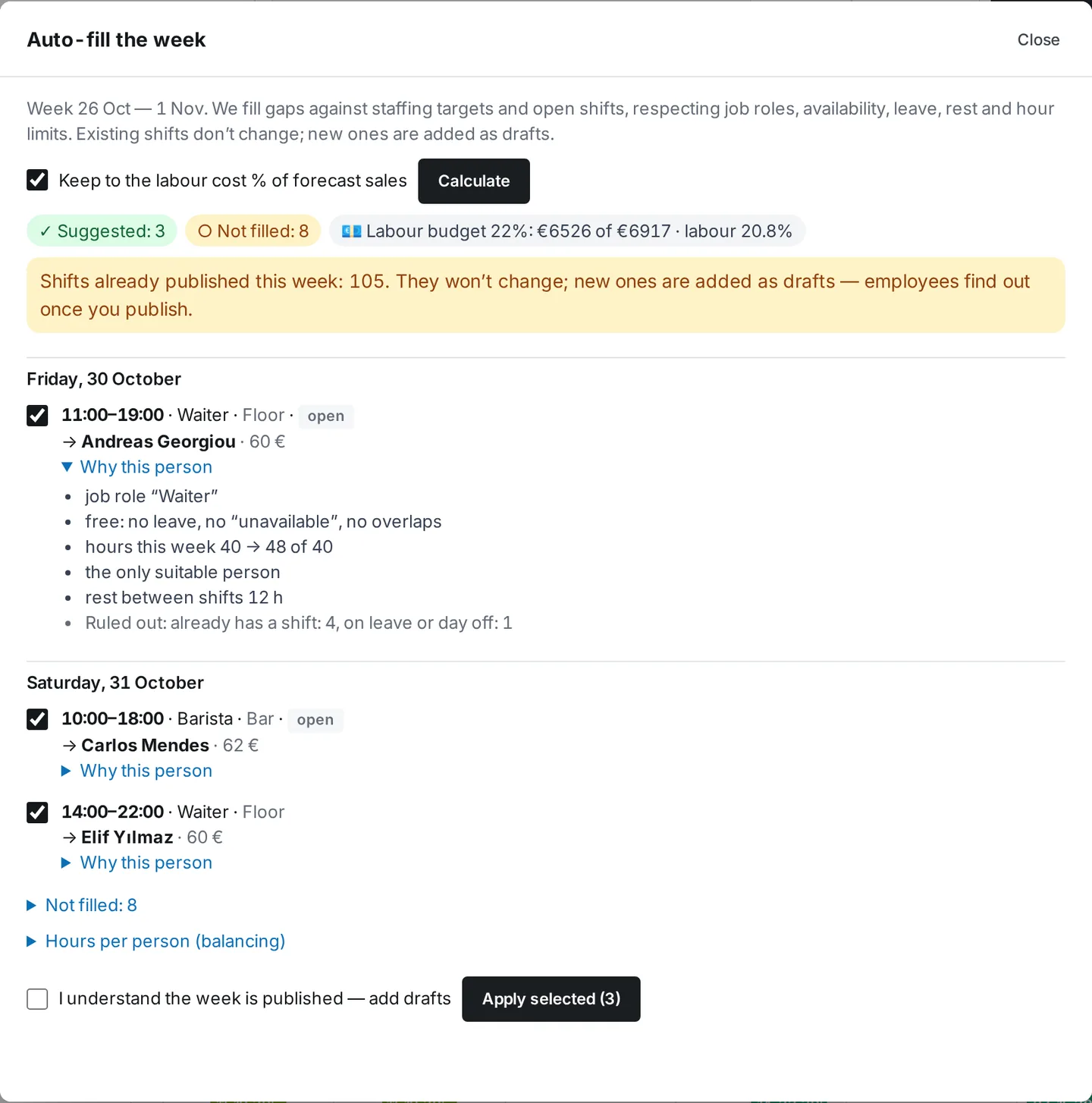
- Click ✨ Auto-fill → Calculate.
- Check the preview: who goes where, Why this person, who was ruled out and why, what isn’t filled, and Hours per person (balancing).
- Untick anything you don’t want and click Apply selected (N).
- Review the drafts and publish the week.
Where to find it
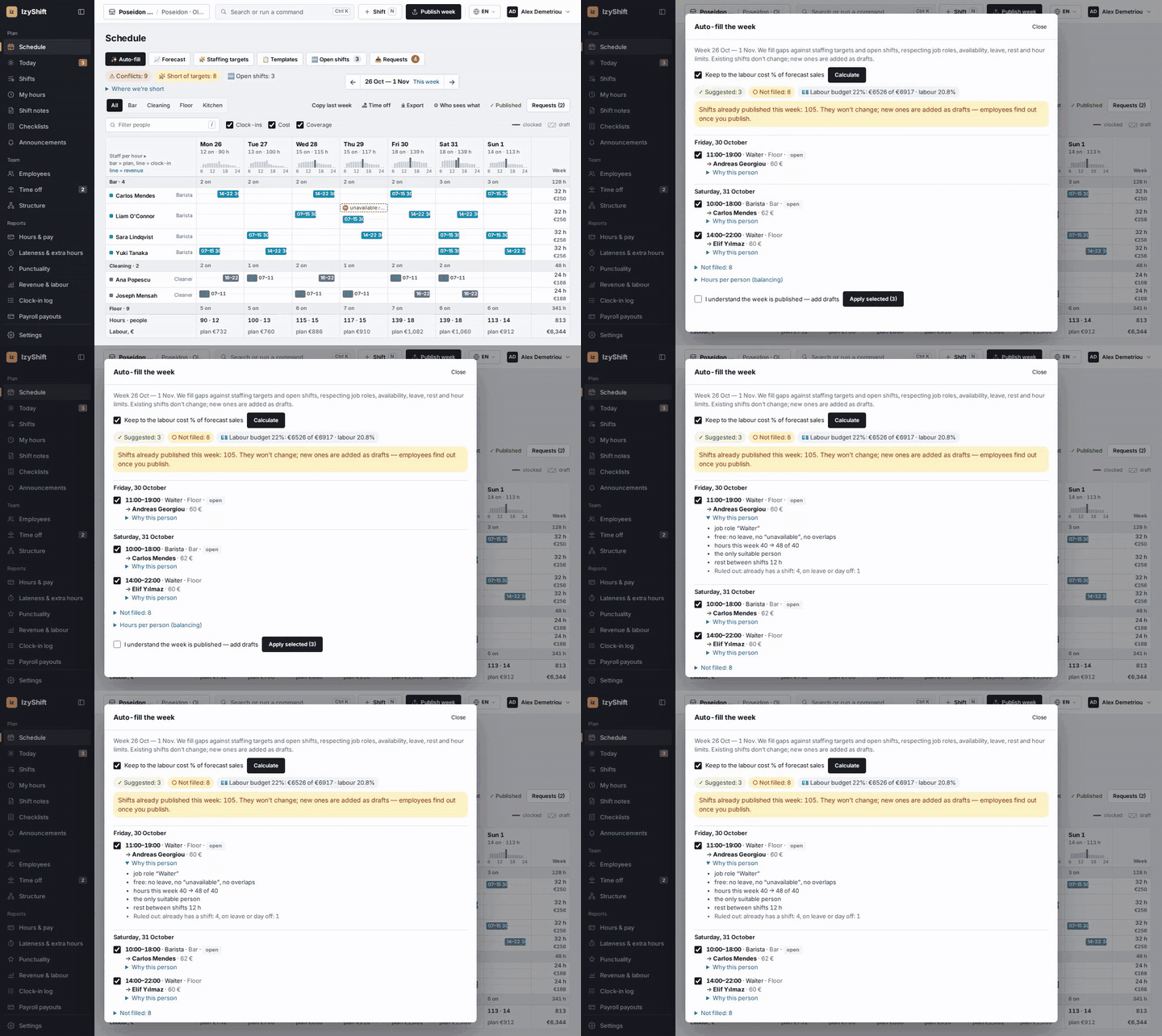
The bar above the schedule: ✨ Auto-fill · 🧩 Staffing targets · 📋 Templates. Managers (department managers in their own departments), administrators and the owner can use it. Money — the labour budget and the Keep to the labour cost % of forecast sales option — is visible to administrators and the owner. Rules (hours per day, rest between shifts, weekly limit, target labour cost) are in Settings → Scheduling.
Good to know
Auto-fill respects job role, availability, time off, overlaps, rest and hour limits. Among suitable people it picks whoever has fewer hours that week; “wants to work” is a plus. Everything is added as drafts only; published shifts never change.
FAQ
The week is already published — can I still run it?
Yes. Tick I understand the week is published — add drafts. Employees find out about new shifts once you publish.
How do I undo the result?
Right after applying, click Undo in the message above the schedule — the drafts from that run are removed.