For managers · 2 min read
Employee availability and requests
How to see in the schedule when people can’t work, spot shift conflicts and decide on availability and time-off requests.
If this feature is turned on for your company, employees mark when they can’t or want to work, and you see it right in the schedule.
Steps
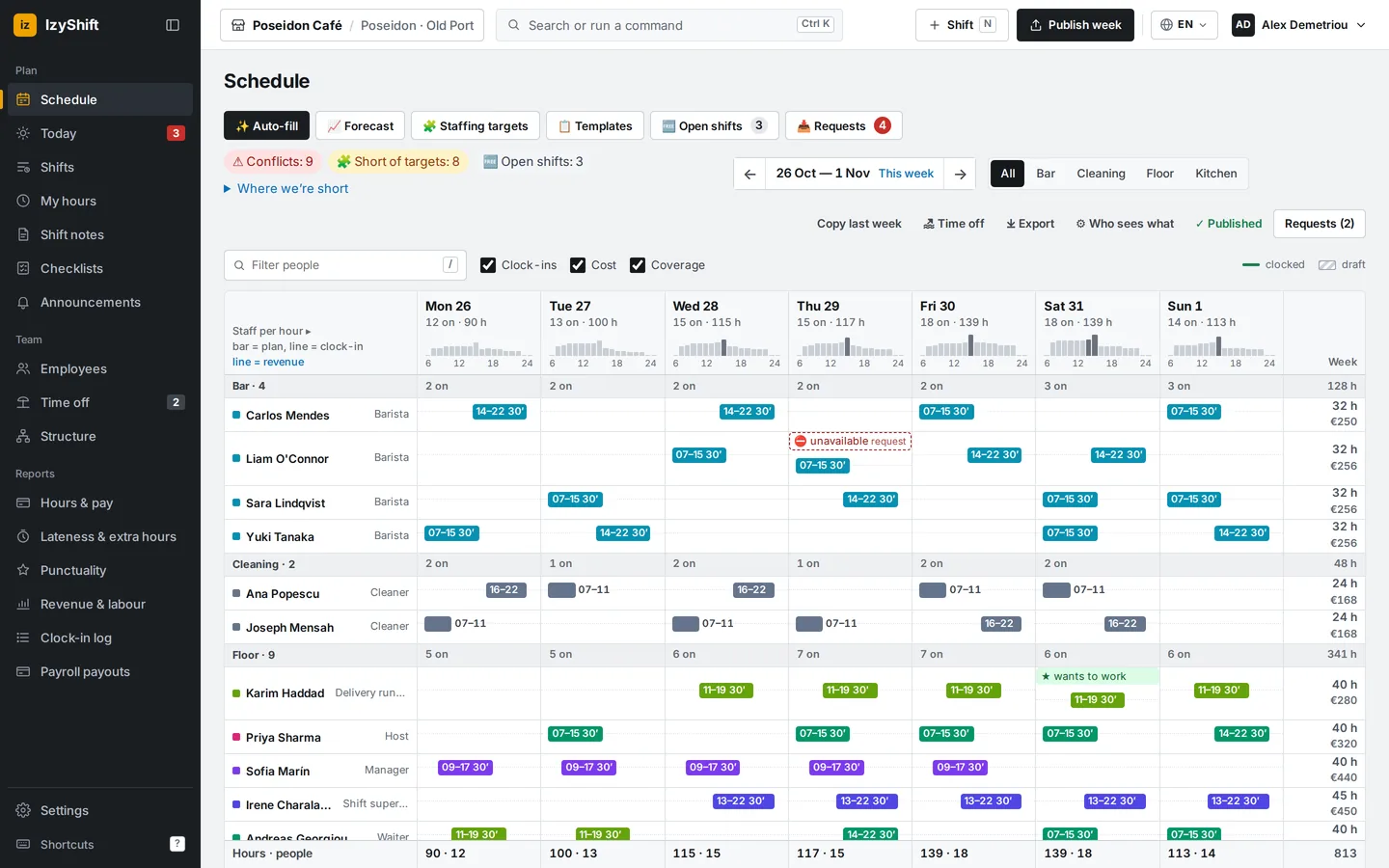
- Open Schedule. The cells show marks: ⛔ unavailable, ⏱ only available in a window, ★ wants to work. A dashed mark is a request that isn’t approved yet.
- A shift that breaks the rules has a red ⚠ frame with the reason: unavailable, outside the window, too little rest, too many hours, doesn’t have this job role. Above the schedule you see Conflicts: N.
- Click a mark to open that person’s Availability. You can add a rule for them: + Add → Unavailable, Only available, Want to work or Available on these dates, Every week or On dates. Rules added by a manager are approved straight away.
- Open employee requests in 📥 Requests → the Availability section and click Approve or Reject.
- Day-off and leave requests are in Time-off requests — see Time off and days off.
Where to find it
- Computer: marks and frames are in the schedule grid.
- Phone: the Availability and conflicts block under each day.
- Managers (department managers for their own departments), administrators and the owner can see and decide. Employees set their availability in Shifts → 🗓 My availability.
FAQ
Do I need to approve “Want to work”?
No, it applies right away. Only “Unavailable” and “Only available” wait for approval — you turn this on in Settings → Scheduling → Manager approval.
Do I also need to mark leave as unavailable?
No. Approved leave or a day off counts as “unavailable” automatically.