For managers · 2 min read
Connect your Syrve POS: revenue and labour cost
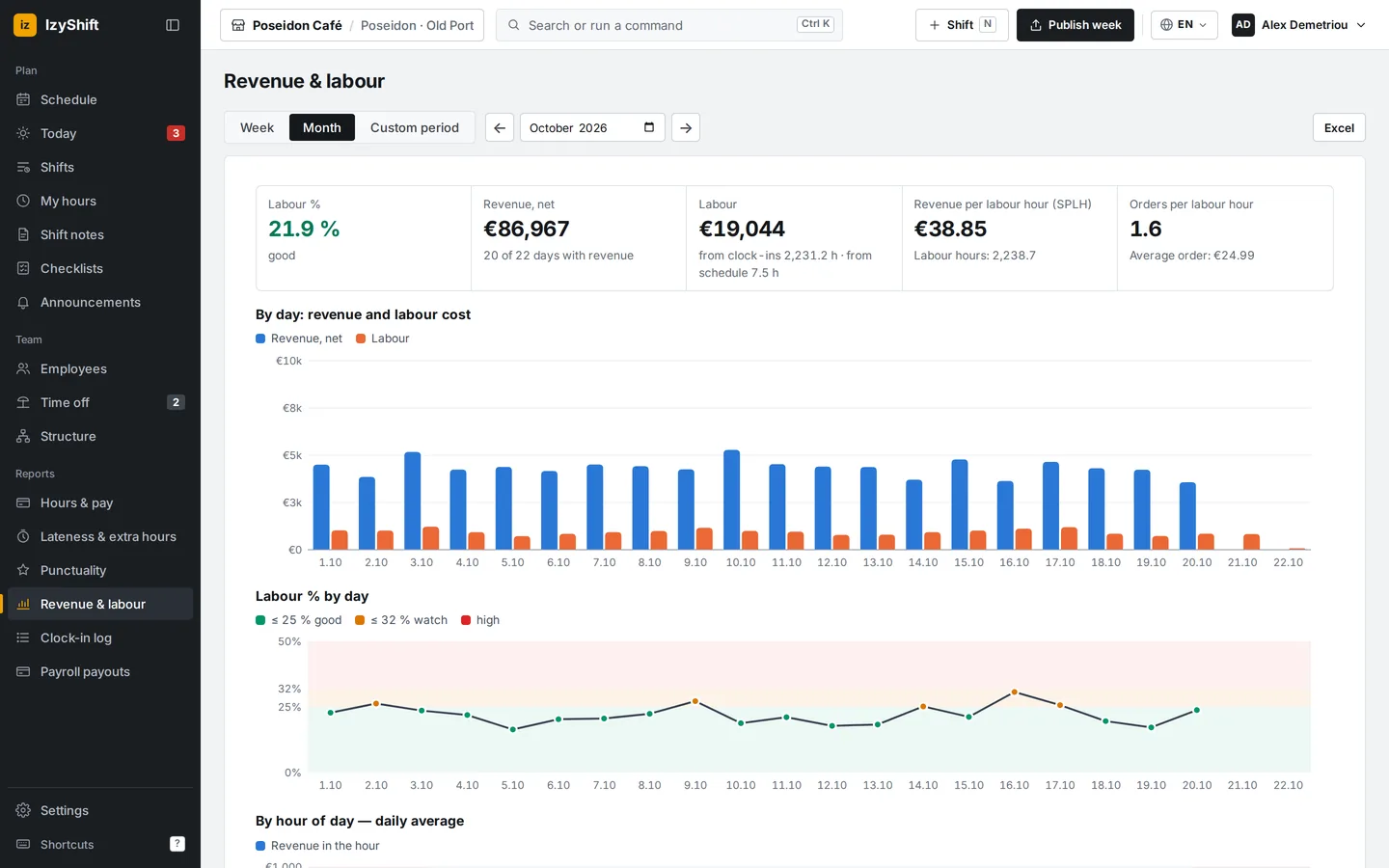
How to connect Syrve to see hourly revenue, labour cost and labour % in the schedule and in the Revenue & labour report.
Connect Syrve to see your revenue next to what you spend on wages. IzyShift only reads from the POS.
Steps
- Open Settings → Integrations and tap Connect on the Syrve card.
- Enter the Syrve server address (for example, https://yourname.syrve.online), Login and Password. Best practice: create a separate Syrve user with report access only.
- Tap Test connection. Under Which locations to count, tick your locations; nothing selected means all locations on the server.
- Tap Connect and load 30 days. After that, data loads every day at 23:00; to load it now, tap Sync now.
- Below, in Labour cost % of revenue, set the “Good — up to, %” and “Watch — up to, %” limits, choose Revenue used (net or gross) and, if needed, fill in Rate for people without one, € per hour. Tap Save.
Good to know
Under What the integration is used for, checkboxes show what Syrve does. By default only Sales and revenue is on. The other options (staff, POS PINs, roles, clock-ins from the POS) are turned on at the owner’s request, and only the owner can change them.
Where to find it
Revenue, labour cost and labour % appear under every past day in Schedule and in the Revenue & labour report (on a computer in the menu on the left, on a phone under More → Revenue & labour). Only account admins and the owner can see the connection and the figures.
FAQ
Why is labour % grey with “Labour cost incomplete: some people have no pay rate”?
Some employees have no pay rate. Add it in their profile → Pay, or set a general rate in the labour cost settings.
How do I disconnect Syrve?
Tap Disconnect Syrve on the integration card. The password is deleted; revenue already loaded stays.