For managers · 1 min read
Reports and exports to Excel, PDF and image
Where to find hours and pay, lateness and extra hours, time off, how to download Excel or CSV and export the schedule.
Reports give you team totals for any period. You can download any table, and export the schedule for printing or sharing in a chat.
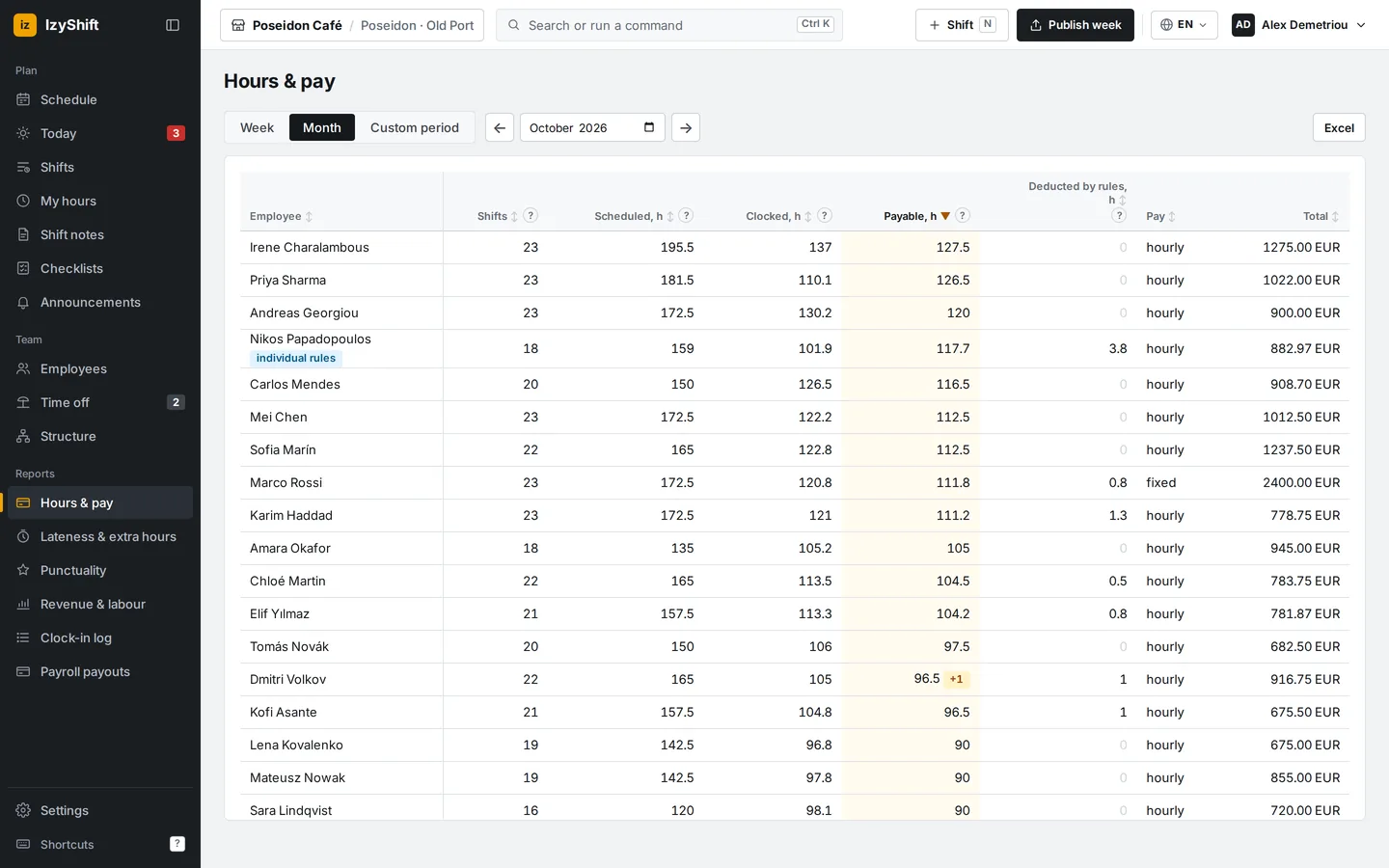
Steps
- Open Reports and pick a table: - Hours & pay — shifts, scheduled and clocked hours, payable hours and amount; - Lateness & extra hours — late arrivals, early leaves, shifts with no clock-in, staying late and hours above the limit; - Clock-in log — every clock-in: when, from where, who approved it; - Leave & absences — days and hours per person.
- Choose the period: Week, Month or Custom dates.
- Tap a column header to sort. Tap a row to open that employee’s shifts.
- Tap Excel (time off also has CSV).
- Schedule: Schedule → ⤓ Export. Choose the period, departments and employees, and whether to show Roles, Actual clock-ins and Drafts. Pick PDF, Image or Excel, then tap Download or To Telegram.
Where to find it
- Computer: the Reports group in the left menu.
- Phone: the Reports tab, or More → Reports. Schedule export is in the schedule’s More ▾ menu.
- Managers and above can see reports. Money amounts — owner and admins.
FAQ
Why is “Scheduled, h” in Lateness & extra hours lower than in Hours & pay?
Lateness & extra hours counts only past shifts, while Hours & pay includes every shift in the period, including future ones.