For managers · 1 min read
Choose how staff clock in and out
The clock-in methods available — work Wi-Fi, location, manager approval, terminal — and how to use several at once.
For owners and admins: how to make sure staff clock in only when they are actually at work. You can combine several methods.
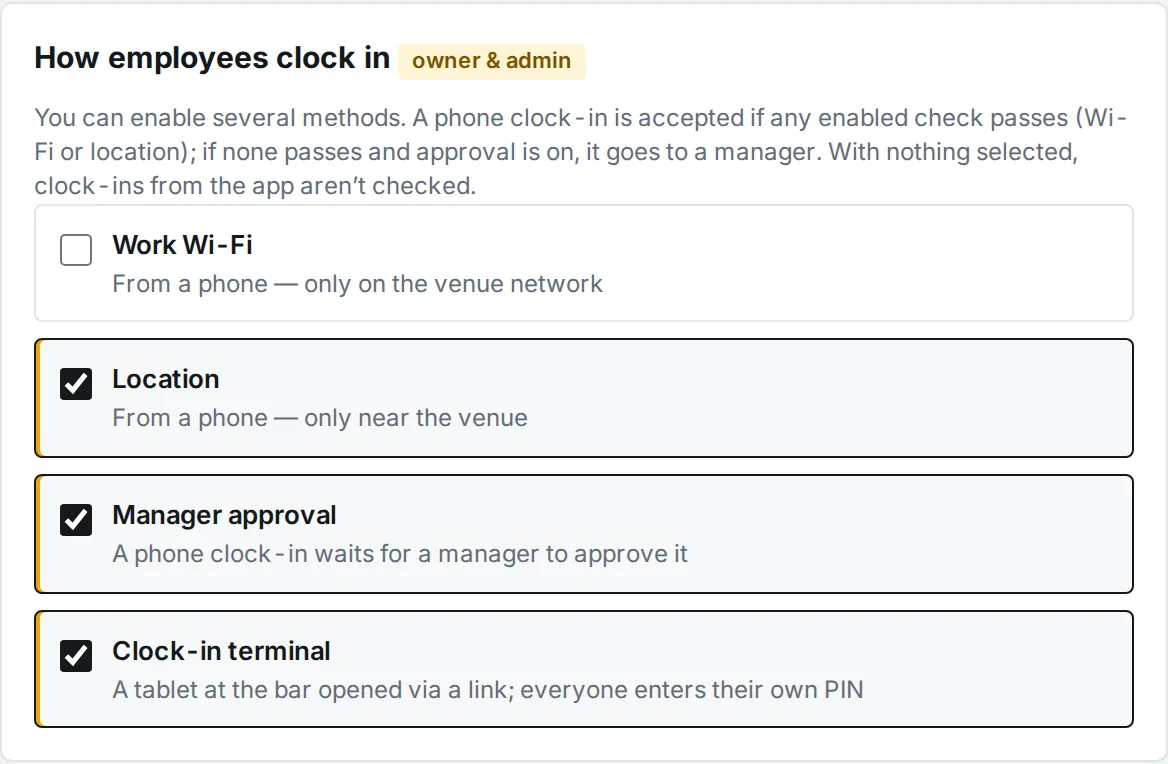
Steps
- Open Settings and find How employees clock in.
- Tick the methods you need. Changes are saved straight away: - Work Wi-Fi — from a phone, only on the venue network; - Location — from a phone, only near the venue; - Manager approval — a clock-in waits for a manager to approve it; - Clock-in terminal — a tablet at the bar; everyone enters their own PIN.
- For Wi-Fi: while you are at the venue, go to the Work Wi-Fi block and tap Add current address.
- For location: at the venue, go to Venue location, tap Use my location, set Radius, metres and tap Save radius.
- For the terminal, see Clock-in terminal.
Where to find it
- Computer: left menu → Settings.
- Phone: More → Settings.
- Only the owner and admins can change the methods.
Good to know
- A phone clock-in is accepted if any enabled check passes: Wi-Fi or location.
- If no check passes and manager approval is on, the clock-in goes to you for approval (on the Today screen).
- If only the terminal is on, staff can’t clock in from the app — only on the tablet.
- With nothing selected, clock-ins from the app aren’t checked.
FAQ
An employee is at the venue, but Wi-Fi check fails. What now?
Your network’s public address may have changed. Open Settings at the venue and tap Add current address again.