For managers · 2 min read
Send announcements and set up shift checklists
How to send news to your team and see who has read it, and how to create opening, closing and sanitation checklists.
Announcements share news with the team and show who has read it. Shift checklists keep opening, closing and cleaning on track. Both work if this feature is turned on for your company.
Steps
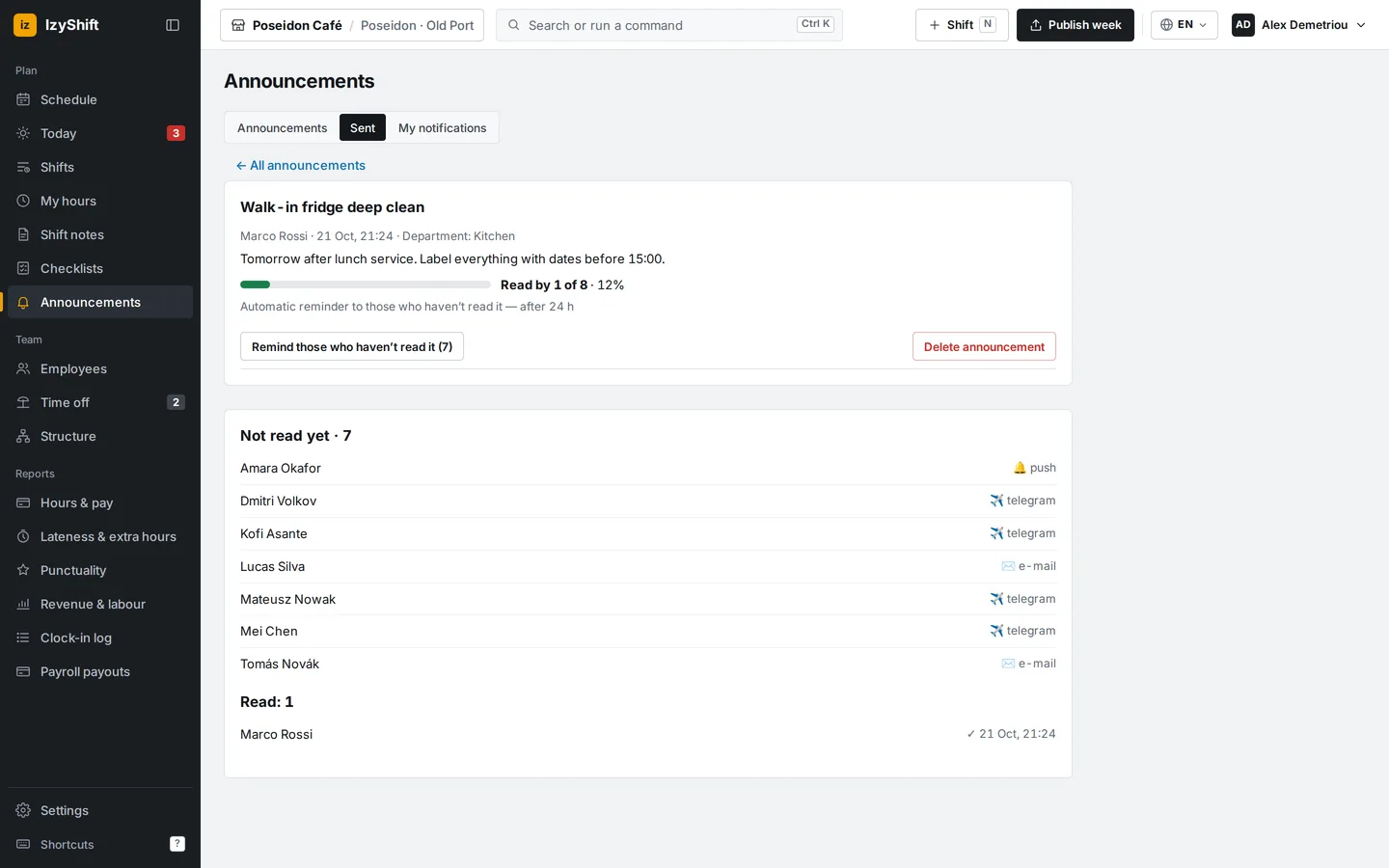
Announcement 1. Open Announcements → Sent and click + New announcement. 2. Enter a title and text. 3. In To, choose Everyone, a location, a department or a job role. The Recipients: N line shows right away how many people will get it. 4. Click Send. 5. Open the announcement to see how many have read it, who hasn’t yet and by which channel they got it. Remind those who haven’t read it sends a reminder.
Checklists 1. Open Checklists → Templates. Click Add from a sample (opening, closing, sanitation) or + New template. 2. Choose the location, department and positions, then add items. An item can be marked Photo needed or Comment needed. 3. Employees see the checklist in their published shift and tick off items on their phone. 4. In the Overview tab, check the status by day and click Mark as reviewed. The Report tab shows totals and Excel for the period.
Where to find it
On a computer — Announcements and Checklists in the left menu; on a phone — More. Available to managers and above; a department manager works only with their own departments. An admin turns checklists on in Settings → Notifications to employees → Shift checklists.
FAQ
Is the reminder to unread people sent automatically?
Yes, once after the set number of hours (24 by default). It is never sent during quiet hours.
What if an employee can’t complete every item?
They can click Complete with skips and give a reason. You will see it next to the checklist.